

Add people
1
Pick them
In People, select the people you want. A campaign’s People tab has an Add people button that takes you there. You can pick up to 500 at a time.
2
Choose the campaign
In Add to a campaign, choose one. Each shows whether it’s running, paused or a draft. Archived campaigns aren’t listed.
3
Read the check
The dialog says how many will be added and how many skipped. Click why? to see each reason with up to five names. On a very large selection it says the check covered the first part only.
4
Confirm
Click Add N people, with your number in place of N. The button is disabled if nobody would be added. A message says how many were added, with Open campaign to go straight to it.
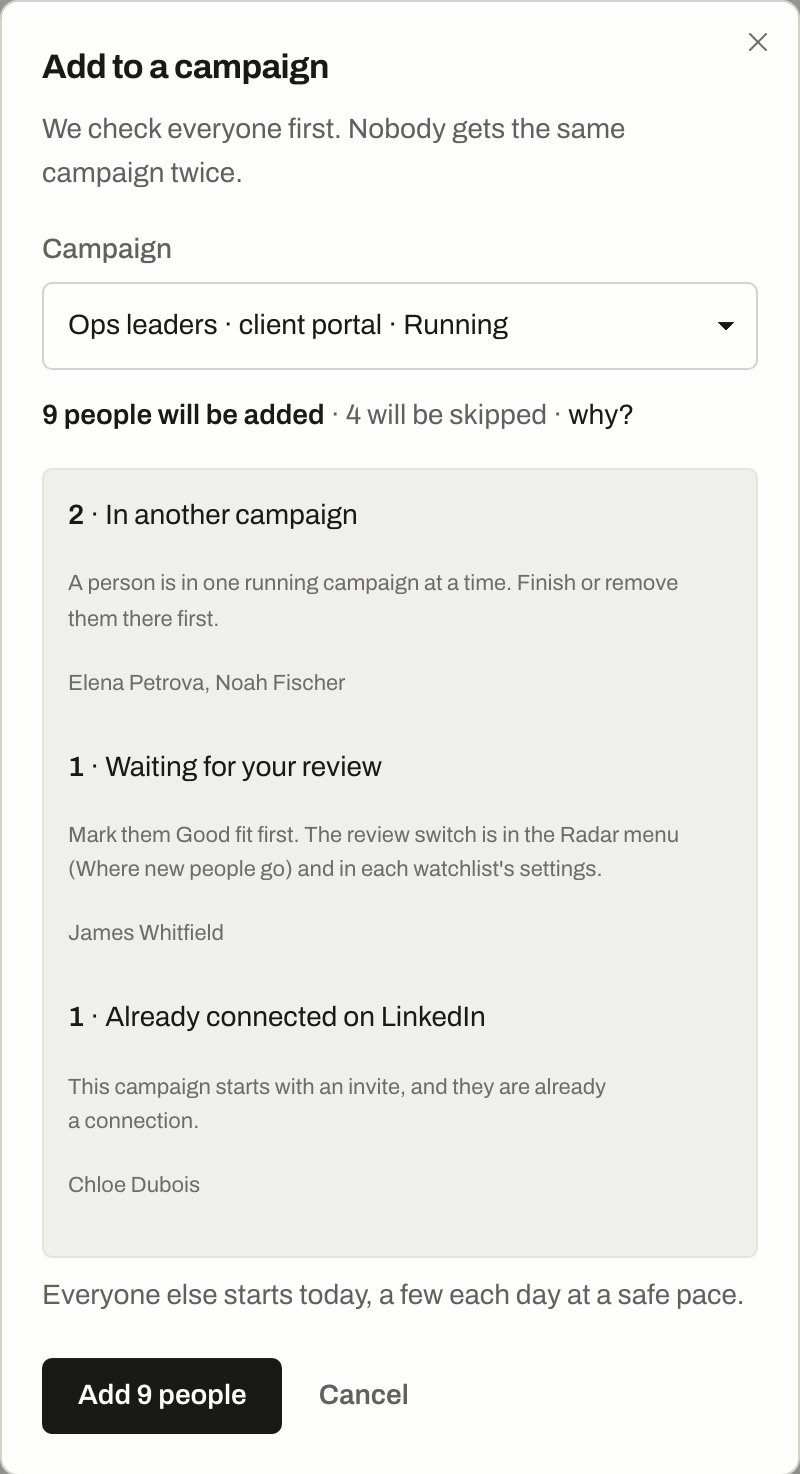
The check before anything is added: who gets in, who is skipped and why, and when they start.
When they start
Adding people doesn’t message anyone by itself. What happens next depends on the campaign’s status.
For a draft or paused campaign whose New people a day is above 10, the line says “up to N each day” instead of “a few each day”. With no limit, it says “everyone at once”. Nothing is sent until the campaign runs.
Once someone starts, the campaign’s approval setting decides whether a message waits for you. If the campaign approves every message or first messages and sends an invite with no note, the dialog adds “Invites without a note go out without approval.” See Approvals.
New people a day is in Settings, under Who gets in. Choose 5, 10, 20, 30, 50 or 100, or no limit. Everyone joins right away and waits their turn. Start days follow the campaign’s schedule. Changing the number moves those still waiting, and removing the limit starts them all. The section says how many are waiting and the day everyone has started.
Why someone is skipped
These people aren’t added. Each row is the reason the dialog shows.Added, but waiting
These people get in and don’t go out yet:- Only one person per company. With One person per company on, the first person at a company is written to and the others wait their turn. This is checked when a message is about to go out.
- Over the daily number. They wait for their start day under New people a day.
- Under a fit rule. If the campaign only takes good matches, people below it report as waiting for review.
Choose who gets in
In Settings, under Who gets in:
Leave out rules skip matching people. Do not contact and the company blacklist always apply.
- Already contacted in another campaign
- Already talking to another sender
- This sender already wrote to them elsewhere
- Everyone in this list
- At most this many new people per company a week
- Countries to leave out
Manage people already in
On the campaign’s People tab, filter by All, In progress, Waiting for you, Replied, Finished, Didn’t go out or Removed, and select people for these actions:
Resume, Try again, Change sender… and Move to another campaign… are under More.
Related
Review people
Mark people Good fit so they can start.
Do not contact
People and companies you never write to.
Approvals
What happens once people start.
Upcoming sends
See when each person’s message goes out.