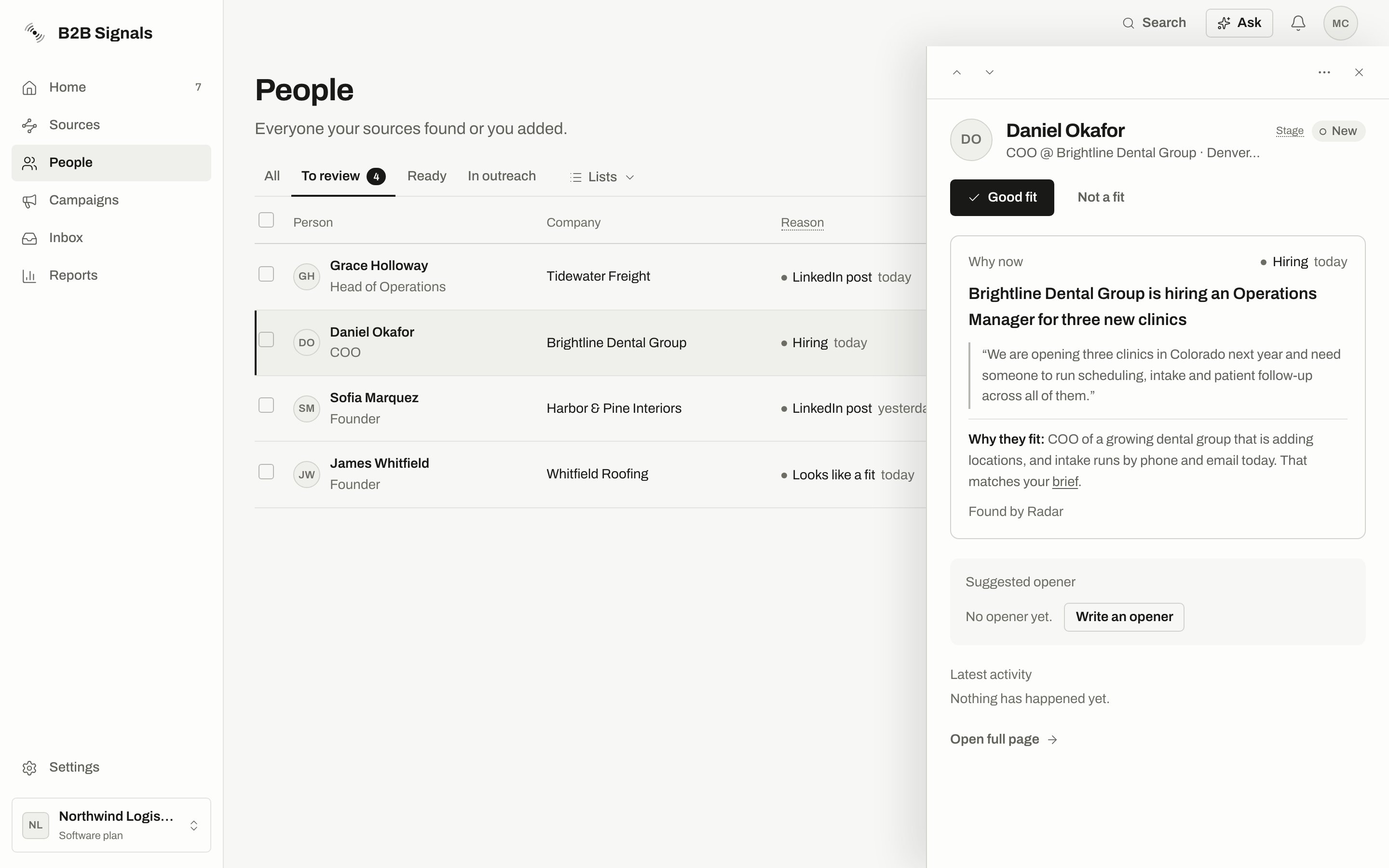
People from a source with review on wait at Stage New in To review. They stay out of every campaign until you mark them Good fit. Adding them by hand doesn’t get around this: they are skipped with the reason Waiting for your review, and the dialog says: “Mark them Good fit first. The review switch is in the Radar menu (Where new people go) and in each watchlist’s settings.”
Source
Review by default
Radar
On
More people at their company
On
Everything else, including watchlists and CSV imports
Off
People from a source with review off are never held by this rule and don’t show in To review. Find them in All.Owners and admins can change the setting:
Radar: open the Radar menu, choose Where new people go, and use Review new people before campaigns.
A watchlist: open the watchlist menu, choose Settings, and use Review new people before campaigns. This setting applies to that watchlist.
A campaign can also hold people for review through its own rule for who joins automatically. Good fit releases them too.
In People, choose the To review tab and click a person. The panel shows why now, how well they match your ideal customer and a suggested opener.
The person panel for someone at Stage New: Good fit and Not a fit at the top, then Why now and the suggested opener.
2
Read the fit line
Under Why now, one line says how well they match, based on the AI fit check’s score:
Label
What it means
Why they fit:
A good match. The reason follows.
Fit check:
A partial match, or the check said nothing about the person. Read it before you decide.
Fit check: Doesn’t match your ideal customer:
The check found they don’t match. The reason follows.
When the reason is about location and was judged on the company, the line adds which place was compared, for example “(The location compared is the company’s: Berlin.)”. The line is hidden for people marked Not a fit.
3
Decide
Choose Good fit or Not a fit. You can undo either one from the message that appears.
4
Go to the next person
Use the arrows or the arrow keys. To decide for many at once, tick them and use Set stage.
Not by itself. In most cases, you add the person to a campaign afterwards.The exception is a running campaign already connected to this person’s list, source or Radar. If that campaign would have taken them, Good fit releases them into it. All the campaign’s usual checks still apply. You see this in the message: N started in campaigns after a bulk change, or Added to a campaign automatically on one person.
Undo takes a Good fit back to New and removes an opener written by that Good fit, unless you edited it. Undo doesn’t take the person out of a campaign they already started. Use Remove from campaign for that.
Tick them in Ready and choose Add to campaign in the bulk bar. Or open one person and choose Add to campaign in the panel.
2
Choose the campaign
Pick from the list under Choose a campaign. Running, paused and draft campaigns are offered. Archived ones aren’t. With no campaigns yet, make one in Campaigns first.
3
Read the check
The dialog counts who will be added and who will be skipped. Choose why? to see each reason. It also tells you how the first message goes out.
The check before anyone joins: 4 will be added, 2 skipped, with each reason under why?.
4
Confirm
Choose Add N people, where N is the number being added. You can add up to 500 people at a time.
Read the line about the first message. A campaign on Autopilot sends without a check by you.
A New person’s panel shows Good fit first. Add to campaign appears after you mark them. The bulk bar always offers Add to campaign, but anyone still waiting for review is skipped. See every skip reason in Add people to a campaign.
Not a fit takes a person out of your lists and stops outreach to them. It deletes nothing.Choose Not a fit in the panel, then a reason or Skip the reason. The reasons are Wrong person, Wrong company, Wrong role, Not who I sell to, Old signal, Weak signal, Already have them and Something else. For a person found by Radar, this teaches Radar what to avoid.
What it stops
Detail
Lists
They leave All, To review, Ready and In outreach.
New campaigns
Automatic adding skips them. Adding by hand skips them as Rejected earlier until you recover them.
Running campaigns
All their running steps stop, including messages waiting in Approvals or Manual sends. Those drafts are discarded and can’t be approved or sent.
Not a fit doesn’t take back a message that has already gone out, and it doesn’t put the person on Do not contact.
Open the Not a fit view with the link under the table, N people marked Not a fit. You can also choose Not a fit in the Stage filter.Use Marked by to filter by who decided: Anyone, You, Radar, Campaign rule or CSV import. The view lists up to 200 people. To get the full list, choose Export all as CSV from the ⋯ menu.Choose Recover on a row, or select several and use Recover. The person goes back to their earlier place in People.
Recover doesn’t restart anything that stopped. To contact the person again, add them to a campaign.
Some rows can’t be recovered from here, for example people Radar filtered out on its own. These rows have no Recover button. The view says so: “Nobody here is deleted. Recover brings people back, and Radar learns from it. Rows without Recover can’t be recovered from here yet.”
Hiding only tidies the Not a fit view. A hidden person is still Not a fit.
Hide [name] removes one row. Use Show to see Not hidden, Hidden or Everyone, and Unhide to bring a row back. Unhiding doesn’t add them to any campaign.
Hide everyone like this… hides people marked for the same reason. They never come back as New. Turn on Also hide new people marked for this reason to keep doing this, saved as a rule.
Hide · not worth it on Home is different. It only removes someone from Home’s Worth a message. Their stage and campaigns don’t change.
Auto-recover rules… in the view’s ⋯ menu checks everyone marked Not a fit every day.
1
Choose New rule
Pick When the reason is, and optionally And it says to match a word in the reason.
2
Choose what happens
Under Then, pick Bring them back to To review or Keep them hidden. Bring them back to To review only works on people filtered out of signal sources. It doesn’t bring back people you marked yourself or people Radar passed over.
3
Save
Leave Also apply to the last 30 days on to include recent people. Choose Save rule. You can turn a rule off or remove it later.