

Choose what you see
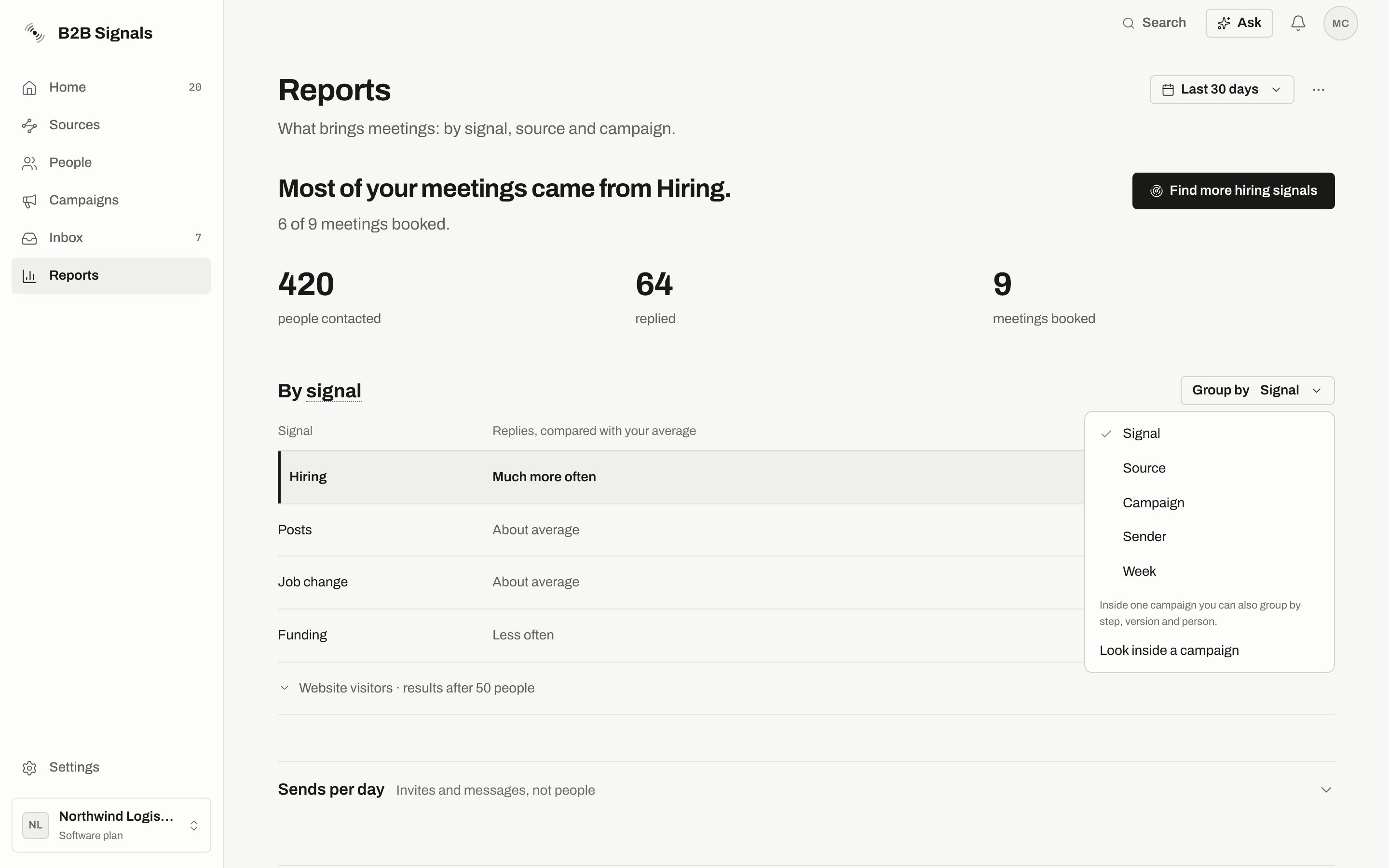
Results by signal, with the Group by menu open.
What each number counts
Reports counts people, not messages. A person is placed in your date range by their first send, then followed until today. So a reply today can raise the numbers of a range that ended last month.
The card “From first contact to meeting” shows these steps in order, each as a share of everyone contacted.
The group a person counts under comes from their first send. If they were later in a second campaign, they still count under the first.
Why you may see “Results after 50 people”
Rates count only people contacted at least 7 days ago, because newer people haven’t had time to answer. A row needs at least 50 such people before it shows a rate. That’s why a reply rate can look different from replies divided by contacted.The comparison words
Each row is compared with everyone else in the same report.
Step has no comparison, because one person counts under every step they received.
Sends per day
Sends per day counts invites and messages, not people. It has one bar per UTC day. Its totals won’t match the people numbers above it.Look at a group’s people
See people opens the people behind a row, starting with the latest touch and up to the first 1,000. Open in People takes them to the People page. In the Person view you can pick Everyone reached, Replied or Meeting. Each person shows what they got so far and what happened: Meeting booked, Replied · interested, Replied, Accepted or No answer yet.Export or share
Open the ⋯ menu. Share link and Export CSV both keep the date range and grouping you see.Export CSV
The file includes People contacted, Replied, Reply rate (people contacted 7+ days ago), Interested replies, Meetings booked and Compared with average. In the Person view, the file has everyone, including people past the 1,000 shown on the screen, with Person, Title, Company, Got so far, What happened, Sender, Last touch and First contacted.Share a link
A link lets someone without an account see this report. It’s read-only.1
Set up the view
Pick the date range and grouping you want them to see.
2
Open Share link
Open the ⋯ menu and press Share link, then Make link.
3
Press Copy and send it
Anyone with the link can see the report, with no sign-in.
- It shows the numbers only, never the names of people.
- If you group by sender, campaign or source, or look inside a campaign, the page shows your team and campaign names. The dialog warns you.
- A preset such as Last 30 days keeps rolling, so the link stays current.
- Only owners and admins can share reports.
- You can have up to 25 active links. Past that, stop sharing some first.
Why sharing is greyed out
What Radar learned
This tab appears if you use Radar. A dot means a suggestion is waiting. It always counts back from today, up to 90 days, whatever range you picked on Results. Radar suggests changes to your brief from how you rated the people it found. Why do we think so? shows the reasoning. Your brief changes only when you press Accept. Not now leaves it as it is. Only owners and admins can accept.When the numbers look wrong
Results appear after your first messages go out
Results appear after your first messages go out
Nothing has been sent in this date range. Try a longer range or check your campaigns.
Too early to say what works best
Too early to say what works best
You have sends, but not yet enough people with 7 days behind them to compare.
A meeting I had isn't counted
A meeting I had isn't counted
Meetings count when booked through your calendar link or when you set someone’s stage to Meeting. Open the person and set their stage.
A number went up in a past date range
A number went up in a past date range
That’s expected. People stay in the range of their first send, and we keep following them until today.
Related
A/B tests
Compare versions of a message.
Stages
Set someone to Meeting by hand.
Radar
How your brief decides who gets found.
Campaigns
Act on what you learn.