

Pick senders for a campaign
1
Open the campaign's settings
Go to Settings, then Senders, and click Change or Add a sender.
2
Tick the senders
People are shared between the senders you tick, and each person hears from one sender.
3
Save
Click Save. If you clear them all, nothing sends until you add one.
One limit per sender
All campaigns share a sender’s daily limit, so adding a campaign never adds sends. If the same LinkedIn is connected in another workspace, its daily limits are shared there too.Pace
Open a sender in Settings › Senders and choose a Pace. Changing it doesn’t send anything. A new sender’s slow start still applies until it ends.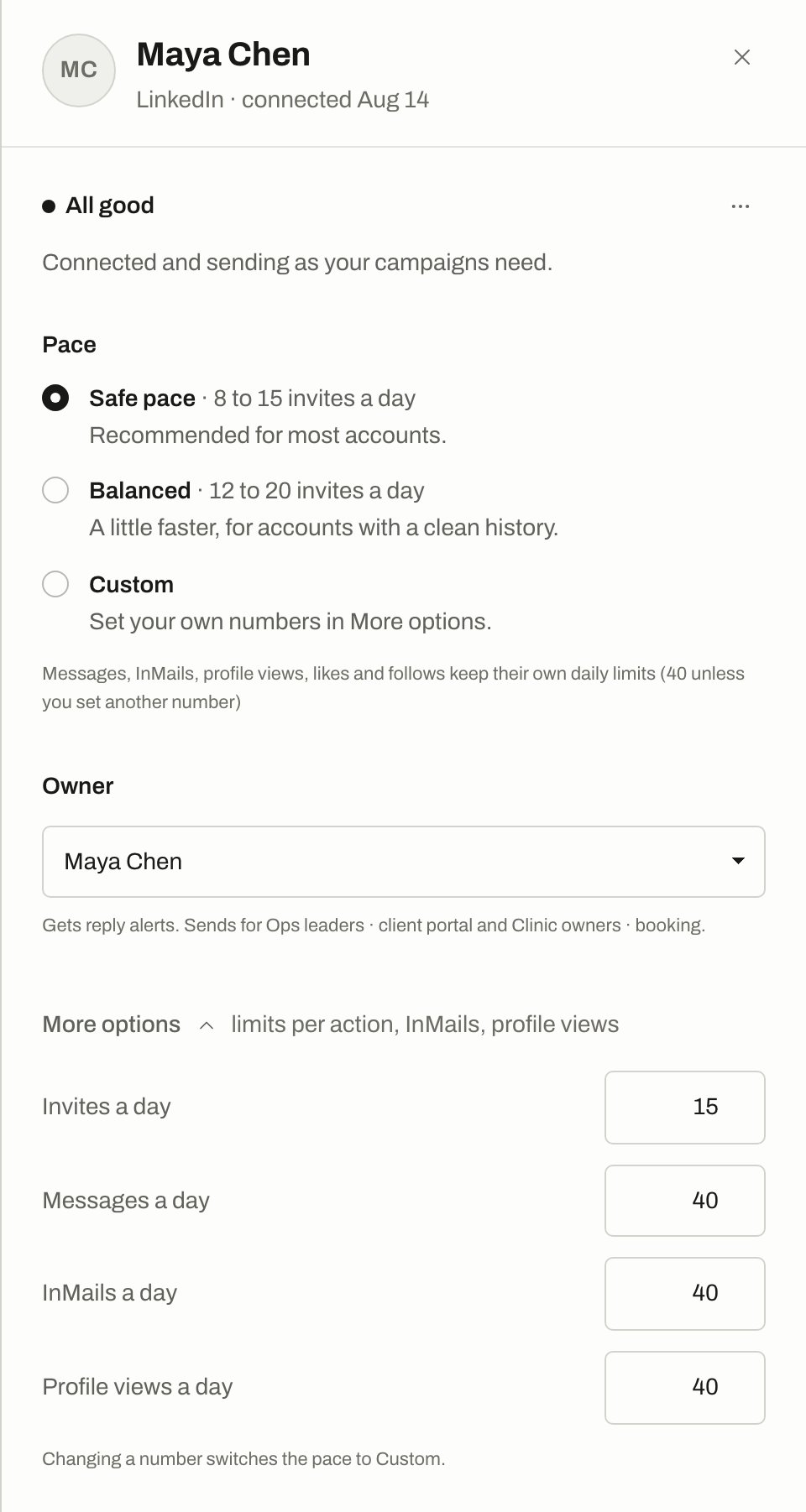
A sender's panel in Settings › Senders, with Pace and More options open.
On Safe pace and Balanced, each day’s invite limit is picked at random inside the range, and it stays the same for that day.
Limits for each action
Under the sender’s More options:
Likes and follows have their own limit of 40 a day too. A like and a comment on a post share one count. Each number can be from 0 to 100, and changing one switches the pace to Custom.
Gaps between sends
Sends don’t go out back to back.- Invites, messages and InMails wait at least the pace’s gap since the sender’s last action.
- Profile views, likes and follows wait at least 4 minutes.
- A random extra of up to a minute is added on top.
New senders warm up
A new sender starts at 5 invites a day and climbs a little each day until it reaches its limit, over 14 days by default. Change the length with Warm-up for a new sender in Settings › Safety, from 0 to 60 days. A setting of 0 means no warm-up. Warm-up only limits invites. The sender’s page shows the day it’s on and the date it reaches full pace.After a long disconnect or a restriction
If an account comes back after a long time offline or a LinkedIn restriction, sending stays on hold until someone clicks Resume sending. Invites then restart gently:Working hours
A message goes out only when the campaign’s schedule and the sender’s rules both allow it.
The time zone used is the campaign’s if you set one, then the person’s, then the sender’s.
How invites are kept low
When LinkedIn says stop
If LinkedIn refuses more connection requests from an account, the sender rests for 24 hours. Its status says Resting. Invites wait until then, and other steps carry on. If the sender’s monthly allowance for invite notes runs out, later invites go without a note until it resets.Pause or remove a sender
Senders can also be paused for you. See Safety pauses.
Only owners and admins can change the settings in Settings › Safety.
Related
Safety pauses
Sender and campaign auto-pauses.
Upcoming sends
See these limits at work, with reasons.
Connect LinkedIn
Add an account to send from.