Find what you’re seeing, then follow the fix. Most problems show their reason in the app, so check the banner or status line first.

Someone isn’t getting messages

Work through these in order.
1

Are they in a campaign?

Open the person. If they’re in People › To review, they’re waiting for you: mark them Good fit. If they’re in People › Ready, no campaign has taken them: click Add to campaign. See How it works.
2

Are they waiting for their day?

Joining a campaign doesn’t mean the first message goes out right away. Check Upcoming sends.
3

Is a message waiting for you?

Check To approve in Approvals, and Manual sends if the sender has no connected LinkedIn.
4

Is the campaign running?

Open the campaign. A draft sends nothing, and a paused campaign says why it paused. See Safety pauses.
5

Is the sender working?

Go to Settings › Senders and read its status. See Connect LinkedIn.
6

Does your plan include sending?

Sending is off on Free, while a paid plan’s payment is failing, and when a plan was canceled. See Plans.

Why someone was skipped

When you add people or launch a campaign, we check everyone first. Click why? next to “will be skipped” to see each reason. The most common ones: For every reason and what it means, see Why someone is skipped.

Why a message wasn’t approved

If you approve several at once, some can be refused. The app tells you why.

Campaigns

The launch dialog lists what’s missing under “Not ready yet”, with a Fix it link for each. The most common is “No sender is connected. Add one to send from.” On Free, sending is off, so choose a plan first.
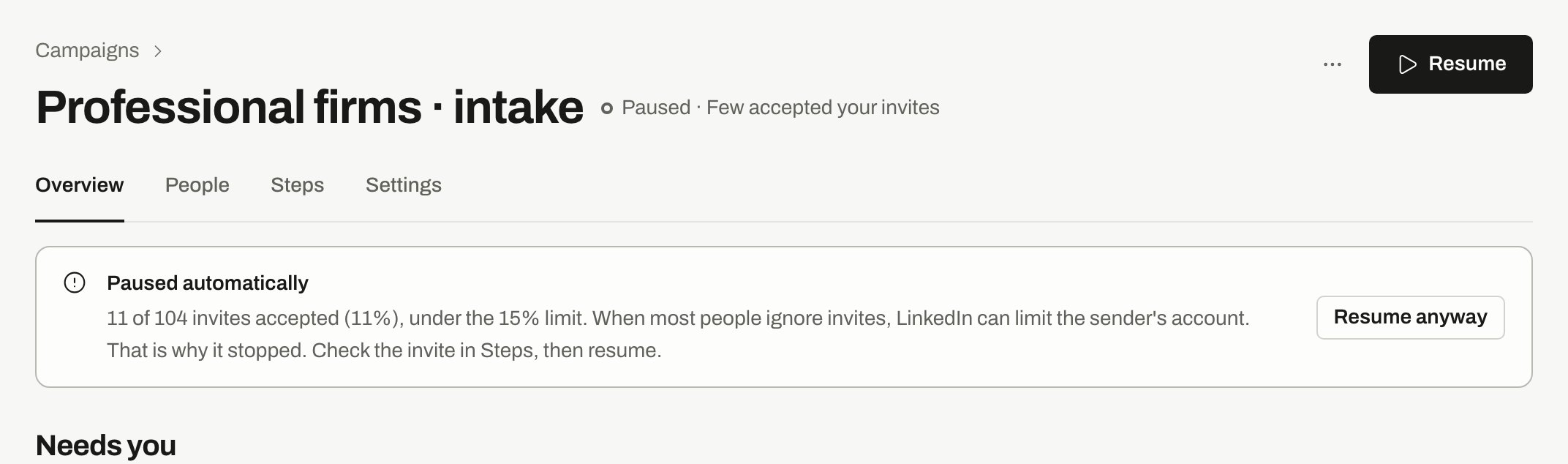
A campaign pauses when too few people accept its invites, because LinkedIn can limit the sender’s account when most people ignore invites. By default this applies below 15% once at least 50 invites have gone out.Home and the campaign page show the real numbers. Before you resume, check who you’re inviting and your note. To carry on as it is, click Resume anyway. That turns the check off for this campaign until you click Turn it back on. See Safety pauses.
Paused automatically banner with the accepted-invite numbers and Resume anyway

The campaign's Overview after an automatic pause.

Manual sends is empty when no sender is working without a connected LinkedIn, or when no step is due yet. Messages show up when their day comes.

Senders

The sign-in expired. Nothing sends until you click Reconnect and sign in again. Campaigns that use the sender wait, and nothing is lost.
We stopped it, and the status shows the reason. If LinkedIn restricted the account or it stayed offline too long, sort out the account first, then click Resume sending. See Connect LinkedIn.
LinkedIn asked for a break. Invites wait until the time shown, and other steps carry on. You don’t need to do anything.
Open the sender. If it says “No news from this sender”, click Repair connection. Nothing is sent and no campaign stops. If LinkedIn conversations outside campaigns are missing, check Inbox shows.
A new sender is warming up for about two weeks. Limits apply per day and only in sending hours. If the account is also connected in another workspace, its daily limits are shared.

No new people

Owners and admins can click Set up Radar. Everyone else needs to ask one of them. If it gives a reason such as a payment issue, follow the link it shows. See Set up Radar.
We start a limited number of new Radars each day. Yours is in line and starts on its own. Paying workspaces start at once.
A first search can wait for set hours. The Radar page says when it starts. If it didn’t finish, Radar searches again on its next search day.
Your brief may be too narrow. Try more job titles or more places, or remove something under Leave out. See Set up Radar.
You reached your plan’s limit. Nothing is deleted. See If you reach your limit.
That’s the Free plan: up to 5 shown a week, with the rest waiting until you choose Software.

Signing in and invites

You asked for a new link too soon. Wait for the time shown and try again.
If you signed up with a link or Google, you may not have a password. Click Email me a login link instead, or Forgot password? to set one.
You can save one workspace from sign-up a day and three in total. Try again tomorrow.
Invite links work for 7 days. Ask for a new one. An owner or admin can click Resend in Settings › Team.
Open B2B Signals and switch workspace there.
Change your plan under Billing & usage, or remove someone first.

Notifications

Check these in order:
  1. It only goes out on weekdays.
  2. We don’t send it when there’s nothing to say.
  3. It uses your time zone, which is UTC until you pick one.
  4. Pause the digest may be on, or All email from this workspace may be off.
See Notifications.
Reply alerts go to the sender’s owner, through Right away. Replies never appear in the bell.
A campaign pauses on its own is off by default under Right away. Turn it on to be alerted straight away.

Billing and limits

Only the owner can choose a plan, manage billing and see invoices. See who that is under Settings › Team.
Sending is on hold until the payment goes through. The owner can update the card in Settings › Billing & usage › Manage billing. See Billing.This only shows on a paid plan. If Billing & usage says Plan canceled, there is no payment to fix: choose a plan to start sending again.
It updates in about a minute. Reload the page after that.
“Senders are not in your plan” means you’re on Free. Connecting needs Software or higher.

FAQ

Short answers to common questions.

Safety pauses

Every way sending can stop on its own.

Stages

What each stage means.

Glossary

What each term means.