

What Radar does and doesn’t do
- It finds people and adds them to People.
- It doesn’t write to anyone.
- It doesn’t put anyone in a campaign on its own, unless a route is set. See How Radar people reach a campaign.
How many people Radar finds
These are upper limits. A search can bring fewer people, or nobody.
How the Free week works
- The week runs Monday to Sunday, counted in UTC. In the week your trial ends, it starts when the trial ended.
- Your first search can run on any weekday. It counts inside the same 10 for that week.
- Once 10 people are found, Radar doesn’t search again that week.
- People past the 5 visible ones are locked. The Overview tab says how many more were found this week and are waiting behind your plan, with a See plans link.
- They open when you upgrade.
Radar’s status
You see the status at the top of the Radar page and on the Radar row in Sources.The Radar page
Open Sources, then Open Radar. The page has four tabs: Overview, Brief, Where it looks and History. If your workspace has more than one Radar, the Radar page and Sources show the running one. With none running, they show the most recent.Overview
Overview shows the people found today and how this week compares with your target. If people came in today, Review today’s people opens them.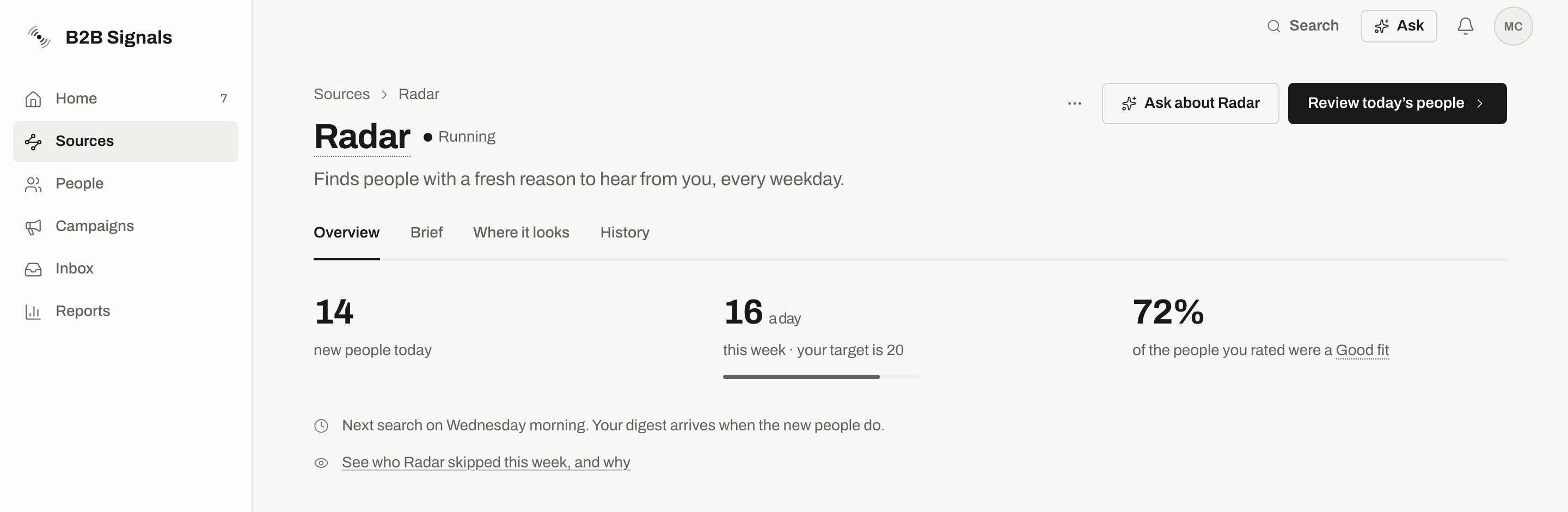
Radar's Overview: people found today, this week against the target, and the Good fit share. The target here is an example; yours depends on your plan.
- Good fit share: how many of the people you rated were a Good fit. Until you rate a few, it asks you to.
- What changed this week: what happened in your market and what Radar learned from your ratings. Radar can suggest a change to your brief here. Nothing changes until you accept it.
- The next search day. Your digest arrives when the new people do. When searches keep finding nobody, the digest part is left out. See When searches keep finding nobody.
- See who Radar skipped this week, and why: people it found and left out in the last 7 days, with the reason.
History
History has two parts:- Brief changes shows every change to the brief, who made it and what it did. You can restore an earlier version. A restore shows up as a new change, so you can undo it too.
- Searches shows what each search brought in. A day with nobody shows why. See them on today’s row opens those people. Show older searches goes further back.
Where it looks
Radar picks where to look from your brief. Someone found in two places counts once. Each kind of place shows Most people, Some or A few. You don’t have to change anything here. If you want to choose the places yourself:- Press Change sources by hand. It opens a week after Radar’s first search. Only owners and admins can use it.
- Turn single places on or off. Anything you turn off stays off. Radar asks before turning on anything new.
- To hand this back, press Let Radar decide again.
What the empty states mean
When searches keep finding nobody
If Radar’s latest searches under your current brief all brought nobody new, Overview and the Radar row on Sources say so, with an Edit your brief link. It shows after at least 2 searches in a row, on at least 2 different days, in the last 21 days.
Press Edit your brief to open the Brief tab. See Change your brief.
The notice goes away once a search brings someone. Searches that couldn’t read LinkedIn don’t count toward it, and neither do searches under an older version of your brief. It doesn’t show while Radar is paused, waiting in line or running its first search.
Change your brief
Open the Brief tab. Only owners and admins can change the brief. Changes send nothing to anyone.1
Pick a section
Press Edit on the section you want. For What Radar watches for, press Change.
2
Make your change
Edit the fields, then press Save. The change applies from the next search.
3
Undo it if you need to
The message after saving has an Undo button. Later, you can undo any change from History.
People already in a campaign and everyone on Do not contact are always left out.
You can also ask for a change in Ask. It shows up as Change to your brief, with what to expect. Press Apply, Ask for another change or Not now.
More options
Pause and resume
Only owners and admins can pause or resume Radar. Pausing doesn’t change your plan, and you can undo it.1
Open the menu
On the Radar page, open the ⋯ menu and press Pause Radar.
2
Choose how long
Pick Until I resume it, or For one week, then it starts again on its own.
3
Confirm
Press Pause Radar. The message that follows has an Undo button.
- Radar stops searching. A search that hasn’t started yet is canceled. One that is already running finishes.
- People it already found stay in People.
- Campaigns keep writing to them. Pausing Radar doesn’t stop a campaign. To stop sending, pause the campaign itself.
- Your watchlists keep running.
Where new people go
Open the ⋯ menu on the Radar page and press Where new people go. Only owners and admins can change this. It applies to everyone Radar finds from now on, not to people it has already found.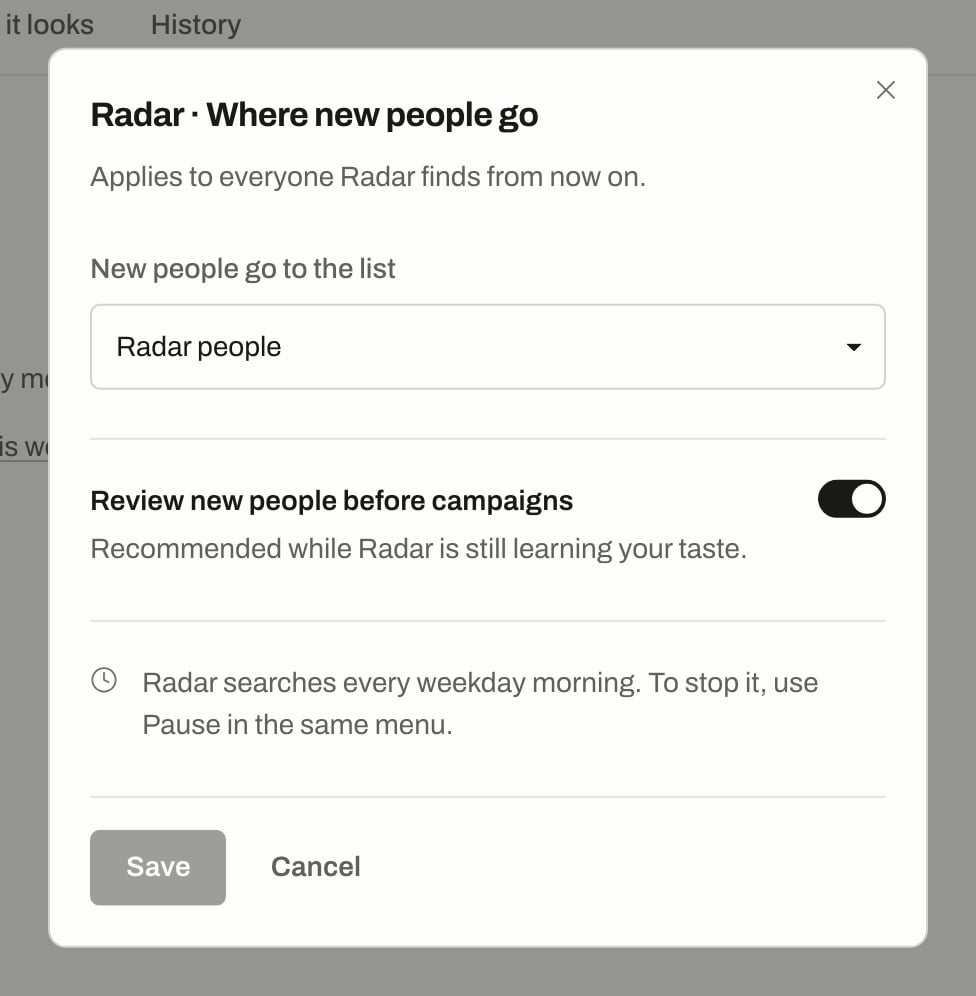
Where new people go: the list Radar adds people to, and the review switch.
How Radar people reach a campaign
Finding someone doesn’t put them in a campaign. These are the ways a Radar person gets into one.
With review on, a person in To review stays out of campaigns, by any route, until you mark them Good fit. Marking them Good fit is what can start messages, so check which campaigns use the list first.
If you don’t have a live campaign on the list, marking someone Good fit sends nothing. They stay in People until you add them to a campaign.
On the Free plan, campaigns don’t launch until you upgrade.
Set up Radar
Who can set it up, and why it might refuse or wait.
Review people
Mark people Good fit or Not a fit.
Add people to a campaign
Move people from a list into a campaign.
Plans
What each plan includes.