

What each stage means
Which stage wins
A person can match more than one stage. The first match in this order is the one you see: Won, Lost, Not a fit, Meeting, Interested, Replied, In campaign, Good fit, New. So a person marked Good fit who is added to a campaign shows In campaign, and later Replied. A person in a running campaign who you mark Not a fit shows Not a fit, and their steps stop.What moves automatically
Automatic moves only go forward, and they never move anyone off Won or Lost. Tagging a person, adding them to a list and enriching them don’t change their stage.
When an invite is accepted or someone replies and the person has no owner yet, the sender account’s owner becomes their owner. An existing owner stays.
Set a stage by hand
Tick people and choose Set stage. The options are New, Good fit, Replied, Interested, Meeting, Won, Lost and Not a fit. A stage set by hand can go in any direction.- New clears their fit decision and pipeline stage, and brings back anyone hidden. This doesn’t stop a campaign they’re already in.
- Lost opens a short dialog. See Won and Lost.
- In campaign isn’t on the list. To put someone there, add them to a campaign.
To contact, Contacted and Connected
These three are steps inside Stage In campaign. They are also how you filter it:
A person’s pill reads In campaign while a campaign runs, then one of the other three after the campaign ends. Find these in the Stage filter. See Find and filter.
The board
Choose Board next to Table for columns of Replied, Interested, Meeting, Won and Lost. The board is for people who have answered. New, Good fit, In campaign and Not a fit stay in the table.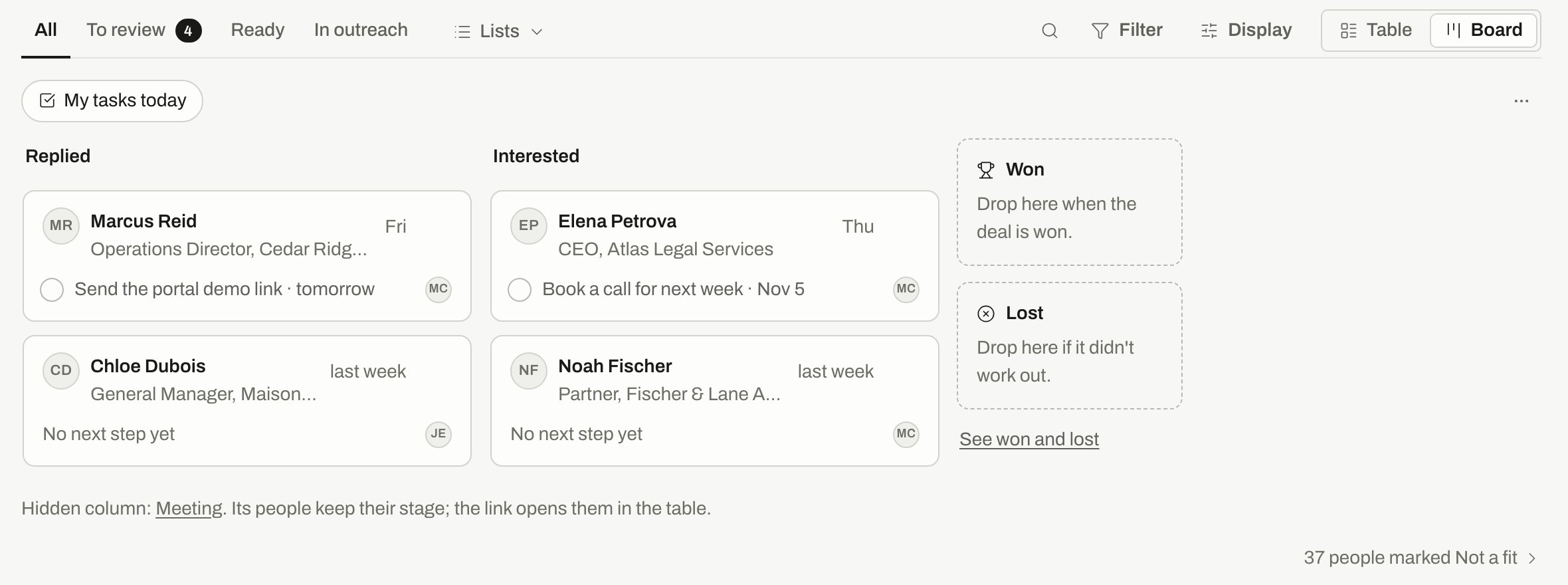
The board with Meeting hidden: the line under the columns links to its people in the table.
- Drag it to another column, or open its menu and choose Move to a column.
- Open its menu and choose Add a task….
- Choose See won and lost to open those two columns, and Hide won and lost to close them. Drop a card there when the deal closes.
- Choose Show more when a column has more people than it shows.
Won and Lost
Moving someone to Lost asks why it didn’t work out. This is optional: the reasons are No budget, Bad timing, Chose someone else, Wrong person and Other. Under Remind me to try again you can pick a month, up to 18 months ahead. It creates a task on the first of that month. Choose Move to Lost to confirm, or Skip to move them without a reason. Wrong person also teaches Radar when Radar found this person. The other reasons are about the deal, so they don’t.Customize stages
Owners and admins can rename or hide board columns.1
Open the settings
On the board, open the ⋯ menu (Board options) and choose Customize stages….
2
Rename or hide
Rename Replied, Interested or Meeting, up to 30 characters. Clear a name to go back to the default. Use the switch to hide any of the three. Won and Lost are always shown.
3
Save
Choose Save. The new names apply across the product for your whole workspace.
Related
Review people
Good fit and Not a fit in detail.
Find and filter
Filter by stage, owner and source.
Inbox
Read replies and tag them.
Glossary
Product terms in plain words.