

Do a step by hand
1
Read what to do
Each row names the person, the campaign and the step, with one sentence on what to do and how long it has waited.
2
Copy the text
Click Copy message, Copy note, Copy email or Copy comment. If the row says nothing is written for this step yet, write it yourself.
3
Do it on LinkedIn
Click Open LinkedIn and send it. Nothing is sent for you from this page.
4
Mark it
Click Mark as sent for something that goes to the person, or Mark as done for a like, a follow or a profile view. The campaign goes on from there.
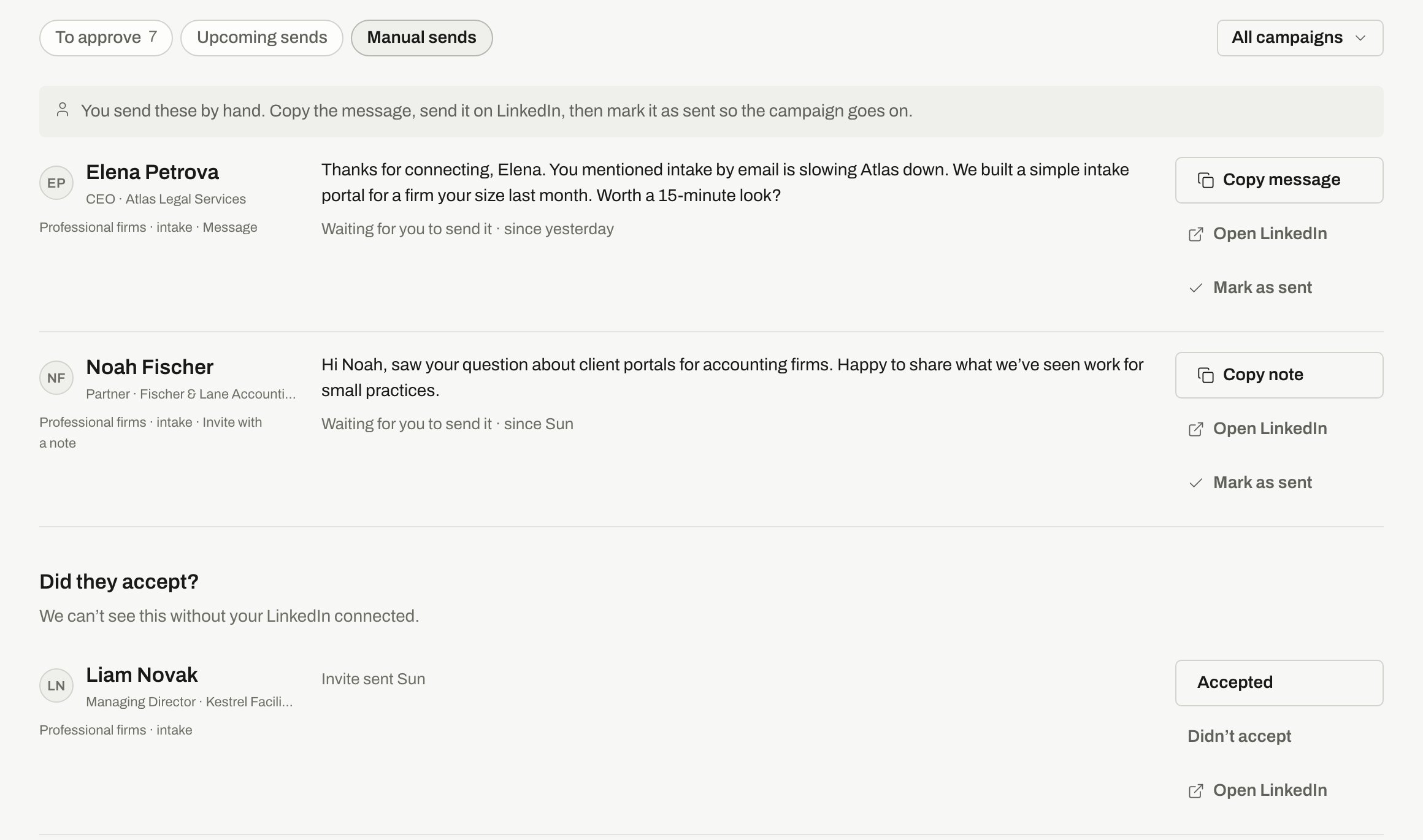
Each row has the text to copy, a link to their LinkedIn and the mark button. Invites you sent by hand wait under Did they accept?
Did they accept?
Without a connected LinkedIn, we can’t see whether someone accepted your invite. So you tell us. About a minute after you mark an invite as sent, the person appears under Did they accept?.1
Check LinkedIn
Click Open LinkedIn and see whether they’re connected.
2
Answer
Click Accepted or Didn’t accept.
Answer as soon as you know, because the wait keeps running. If two people on your team answer, the first answer stands and the page says it was already answered.
Switch to sending for you
When you connect LinkedIn, the campaign starts sending for you. People whose step was already here stay here until you mark them. The rest go through the connected account, under its limits. See Connect LinkedIn. Send now in Upcoming sends doesn’t work on these people. It says the message is sent by hand.Related
Connect LinkedIn
Let the campaign send for you.
Approvals
Check messages before they go out.