

Add a step
Click Add step at the end of the list, or Add a step after this on a step, and pick from the list. Options that can’t go at that point are greyed out.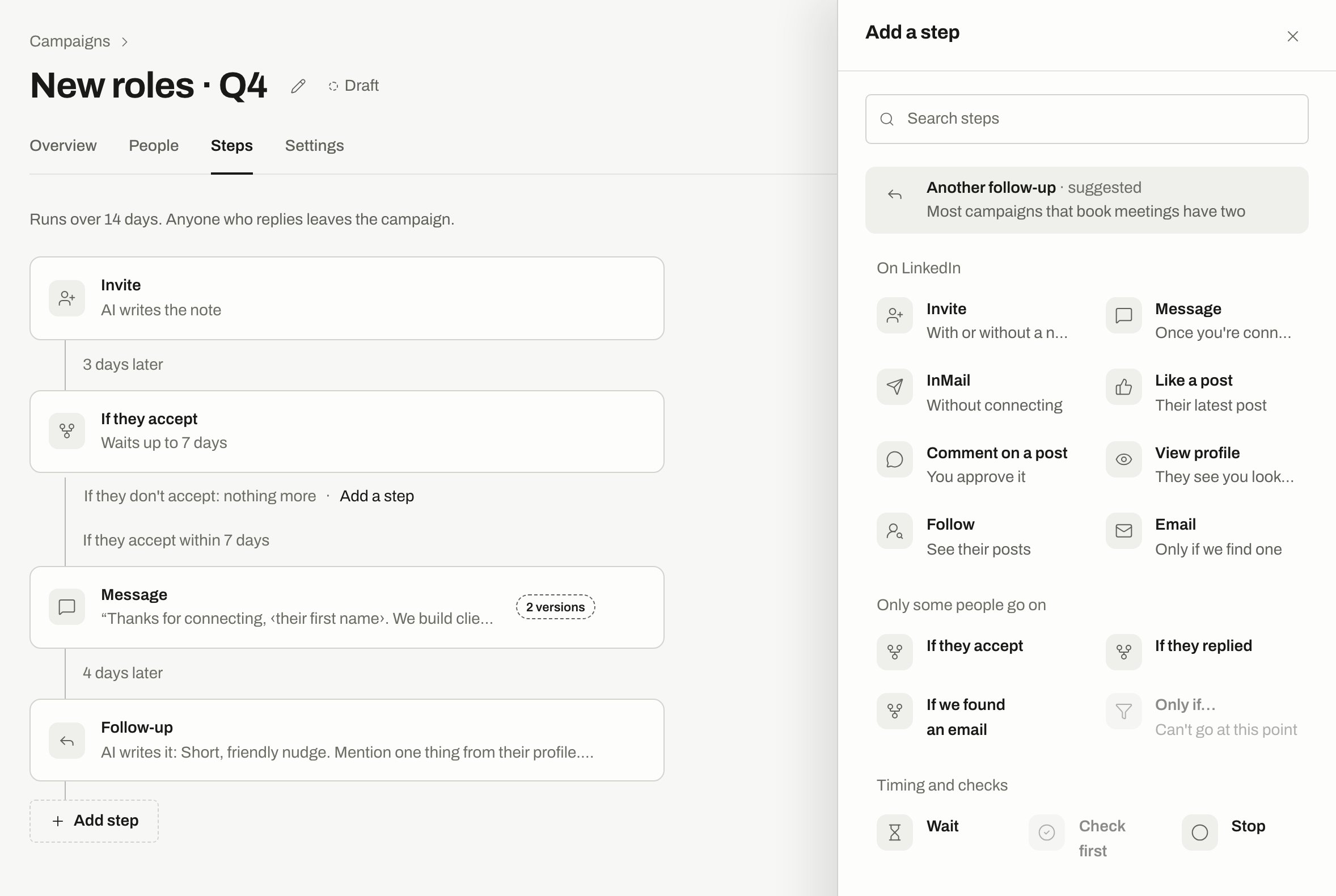
The Add a step sheet on a draft. Only if… is greyed out because it can't go at this point.
Connection request: with or without a note
On an Invite step, choose No note or With a note.- No note: the invite goes out bare, and there’s nothing to write.
- With a note: write it yourself or let AI write it. The step counts to 200 characters. A sender on a LinkedIn Premium, Sales Navigator or Recruiter account can send up to 300.
AI or your own text
Each written step is one or the other.- Let AI write it
- Write it myself
Answer “What should this message do?” The box suggests a starting point: “Mention why we are reaching out, from what we know about them. In one line, say what we help with. Under 60 words.” On a comment step it asks “What should the comment do?” AI writes each person’s message from their reason and your writing rules.Text is written shortly before it’s due, not all at launch. If a person’s message hasn’t been written yet, Approvals and Upcoming sends say so.Language defaults to Their language, chosen from their profile. You can set one for the step.Autopilot can’t use this. Autopilot only sends text you wrote, so a step on Autopilot has Let AI write it turned off, and the campaign asks you to switch before launch.
Follow-ups and timing
Follow-ups are Message steps with a wait in front. When sets the timing.
A Wait step can count Only during working hours. Every send also has to fit the schedule and the sender’s limits, so the real time can be later than the step says.
When someone replies
Stop when they reply is always on, and you can’t turn it off. The moment a person answers, nothing more goes out to them from the campaign, whichever step they were on. The reply shows in the Inbox. If the reply shouldn’t count, open the conversation in the Inbox. Its ⋯ menu has Ignore this reply and Resume campaign for that person, when they apply. Auto-reply with your check is a separate setting in Settings, under Replies. AI drafts an answer to simple replies, and you send it.More options on a step
Open More options on a message step:
If AI is unavailable sits in Settings, under More settings. Wait until AI is back holds messages. Draft a backup for me to approve writes backup text. Backup text never sends without a person approving it, even on Autopilot.
Show all options in My account opens options that otherwise appear after your first launched campaign, such as Canvas, Versions and per-step approval rules.
Edit a campaign that’s running
Steps are read only while a campaign runs. Click Pause & edit. A paused campaign sends nothing until you turn it back on.- People who already got a step keep their message. The new text goes to the rest.
- The Canvas opens only while the campaign is paused.
- A change in Settings applies to messages that aren’t drafted yet.
Related
Approvals
Check and edit messages before they go out.
A/B tests
Test two versions of a message.
Senders and limits
Why a step can go out later than it says.
Inbox
Where replies land.