Why a sender or a campaign paused on its own, the exact numbers behind it, and what Resume, Resume anyway and Turn it back on do.
We can stop sending on your behalf when few people accept invites, because LinkedIn can limit accounts when most people ignore them. This page explains the two pauses and how to get going again. These checks lower the risk, and they can’t promise an account won’t be restricted.
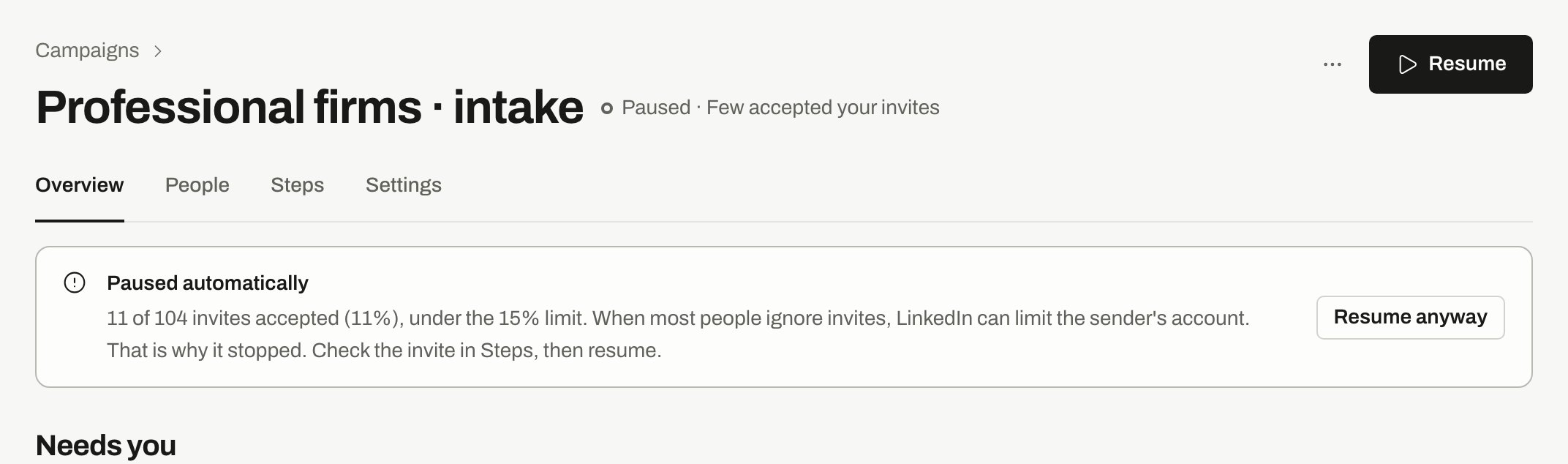
The campaign’s status says Paused, with “Few accepted your invites”. Overview shows Paused automatically with the real numbers and which invites they cover, for example “9 of 99 invites sent 3 to 14 days ago were accepted (9%), under the 15% limit”. After a plain Resume in that time, it reads “sent since the last resume”. Owners and admins are told by notification, and the campaign also shows on Home.
A campaign paused for few accepted invites, with the numbers behind it.
Only connection requests this campaign sent are counted, one per person. Invites you moved in from another tool don’t count.These numbers can differ from How it’s going, which counts the whole campaign. The banner says so, and adds what each button does: “Resume starts the check again from now. Resume anyway turns the check off for this campaign.” If you can’t use Resume anyway, it says only “Resume starts the check again from now.”First, check the invite in Steps. Then choose how to go on.
On Overview, click Turn it back on in the Not paused for few accepted invites banner. Owners and admins can do this. It doesn’t pause the campaign right away. From then on, it’s paused again if few people accept.
The sender’s status says Paused on its own, with the reason, such as the accepted rate and the number of invites. Campaigns that use it stay running, and the people assigned to it wait.We never resume a sender for you. Check what’s going on, then click Resume sender in Settings › Senders. The button also shows on the campaign’s Overview, in Approvals and in Upcoming sends.A sender paused for few accepted invites also gets its own row on Home, with the numbers, for example “6 of 54 invites sent in the 14 days before it paused were accepted (11%), under the 15% limit”, plus Resume sender and Open senders. Only owners and admins can resume it.Resuming a sender doesn’t restart its count. The next daily check looks at the same last 14 days, so the sender can pause again if it’s still under 15%.A sender can also stop for other reasons:
What you see
Why
What to do
Paused on its own, after a LinkedIn warning
LinkedIn showed a warning, and Pause a sender when LinkedIn shows a warning is on.
Check the account on LinkedIn, then resume
Paused by you
Someone on your team paused it.
Resume sender
Sending on hold after an account was offline or restricted
It came back after a long disconnect or a LinkedIn restriction.