

The four tabs
A person has one stage at a time. Each person’s stage decides which tab they appear in.
To review only holds people from sources with review on. If a tab looks empty and you expect someone there, check All. See which sources wait for review.
The usual path
1
Review new people
Open To review and mark each person Good fit or Not a fit. See Review people.
2
Add them to a campaign
Marking someone Good fit doesn’t always start outreach. Open Ready, tick the people and choose Add to campaign. See Add people to a campaign.
3
Follow the replies
As people answer, their stage moves on its own. Use the board to work the deals. See Stages.
Open a person
Click a row to open the person panel. Use the arrows or the arrow keys to move to the previous or next person. The panel shows their stage, why now, how well they match your ideal customer (see the fit line), a suggested opener and their latest activity. Choose Open full page for the tabs Activity, Company, Details and Tasks.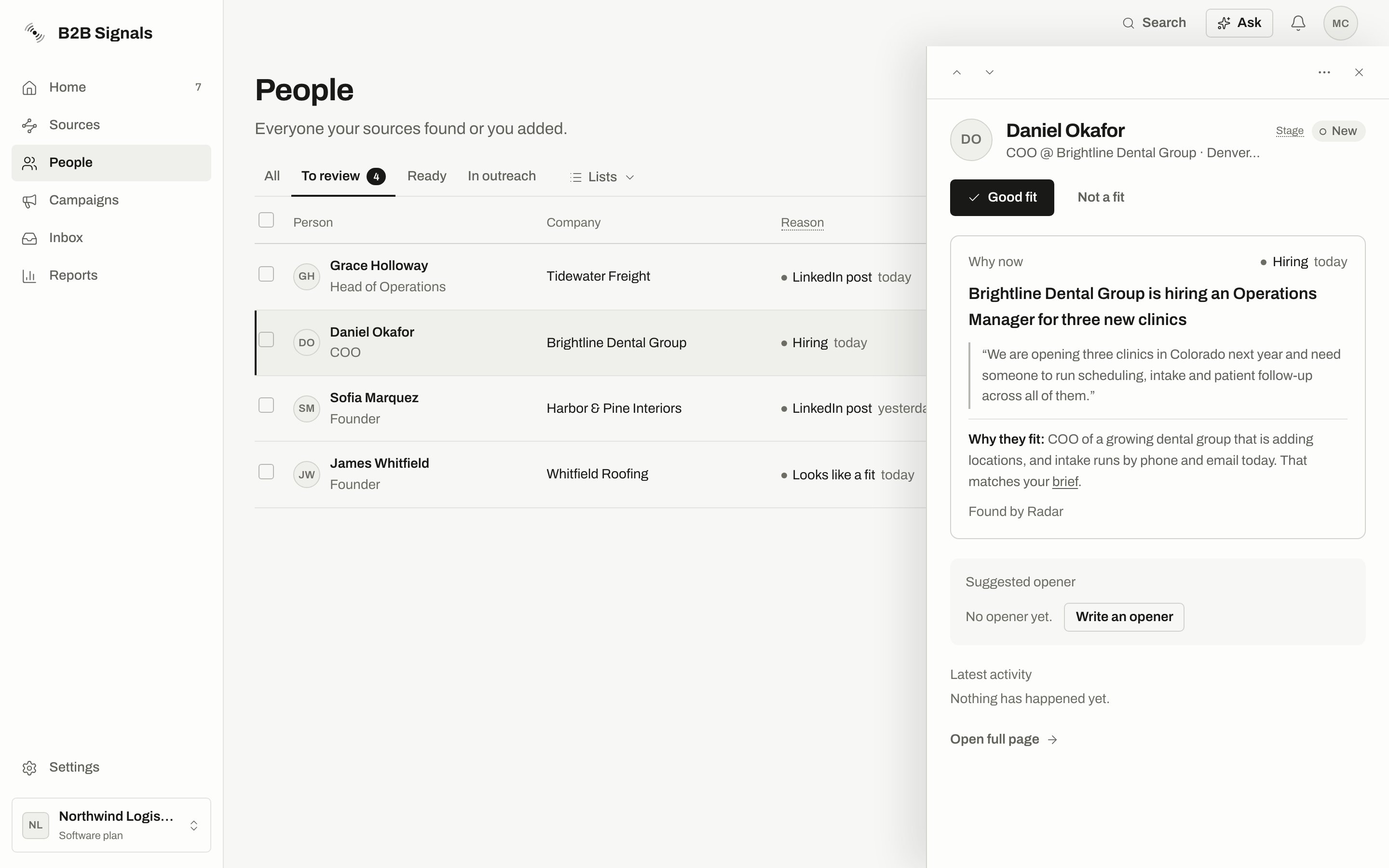
The person panel for someone at Stage New: Good fit and Not a fit at the top, then Why now and the suggested opener.
The panel’s ⋯ menu holds Add to list, Watch [first name], Set owner, Refresh [first name]‘s data, Do not contact and Not a fit.
Before anyone joins a campaign, the Add to a campaign dialog checks them. A person is in one campaign at a time, so someone still running elsewhere can be skipped with the reason In another campaign.
Work on several people
Tick rows to open the bulk bar. It shows how many people you selected and offers:- Add to campaign
- Set stage
- Add to list
- Remove from list, only while a list is open
- More, which holds Tag…, Enrich…, Watch their companies…, Export selected, Remove from campaign…, an owner to assign and Remove owner
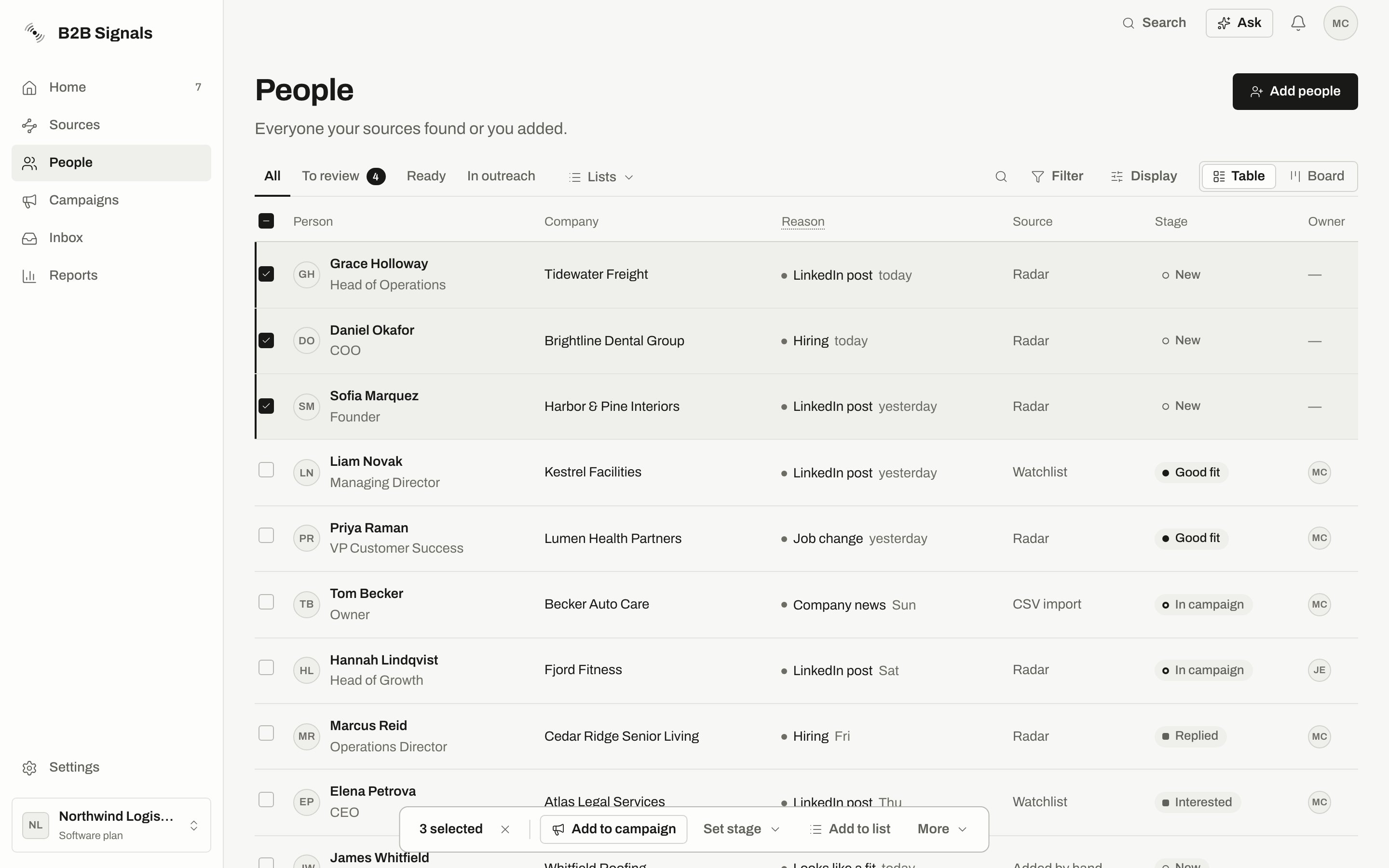
Three people ticked: the bulk bar appears at the bottom of the list.
On a phone or tablet
Below desktop width, People opens on To review when someone is waiting. Review one by one walks through them.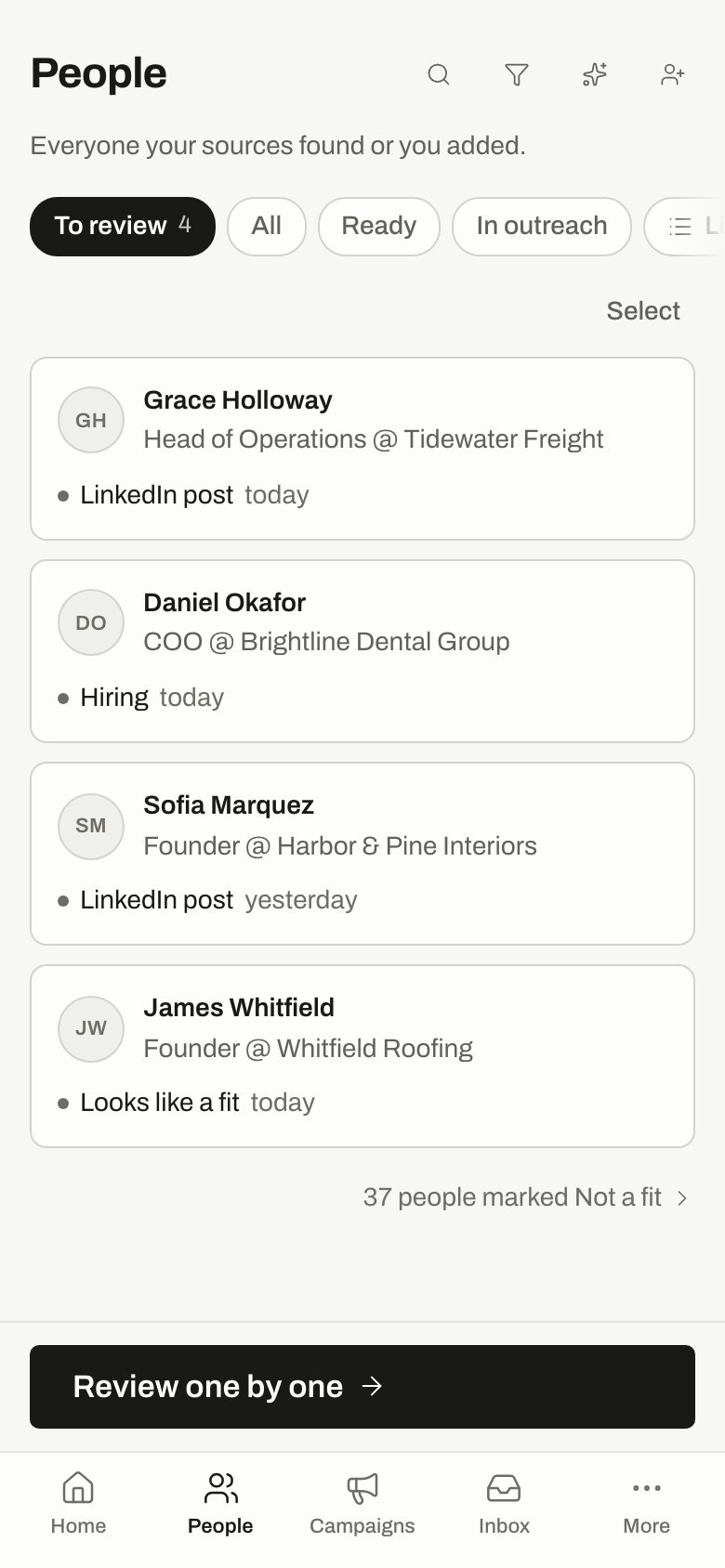
On a phone, People opens on To review with Review one by one pinned at the bottom.
Common questions
Where did someone go after I marked them Not a fit?
Where did someone go after I marked them Not a fit?
They leave All and every other tab, but nothing is deleted. Find them through the link under the table, or choose Not a fit in the Stage filter. See Not a fit.
Why can't I find someone on Ready after adding them to a campaign?
Why can't I find someone on Ready after adding them to a campaign?
Ready only shows Stage Good fit. Once a campaign takes them, they move to Stage In campaign and show in In outreach.
Is anything here sent to the person?
Is anything here sent to the person?
Reviewing, tagging, filtering, enriching and exporting send nothing. Adding someone to a campaign can lead to messages, depending on how that campaign is set up. The Add to a campaign dialog tells you how the first message goes out before you confirm.
Related
Review people
Good fit, Not a fit and what each one does.
Stages
What each stage means and what moves people.
Find and filter
Filters, saved views, tags, owners and tasks.
Enrich and export
Find emails, watch for changes and download people.
Do not contact
People and companies nobody ever writes to.
Glossary
Product terms in plain words.